 cassette deck
Which voice recorder app should you use?
Written by the team that builds Cassette, so we are not neutral about it. Updated 10 November 2026.
The short answer
Start with the one your phone came with. Voice Memos on iPhone records, plays back slower or faster, skips silence and cuts background noise when you play it back, and writes a transcript on iPhone 12 or later. On Android, use the recorder from your phone's maker, such as Recorder on a Pixel or Voice Recorder on a Galaxy. Get a different app when you want more than audio: marks at the moments that matter, and notes or a to-do list written for you. Cassette is one of those, on iPhone and Android.
The free recorder you already have
For a quick memo, a song idea or a talk you only want to hear again, the built-in app is often all you need.
- iPhone, Voice Memos. It may be in the Utilities folder. Tap the red button to record and again to stop. Under More, then Options, Apple lists a playback speed slider, Enhance Recording and Skip Silence. Enhance Recording cuts background noise and echo when you play it, and none of these change the recording itself. On iPhone 12 or later you can also view a transcript in the languages Apple supports.
- Pixel, Recorder. It writes a transcript as you record. Google says your recordings stay on the phone and are not synced to your Google Account unless you turn on backup or share them.
- Samsung Galaxy, Voice Recorder. On select phones and tablets with One UI 6.1 or higher, Transcript assist writes a transcript and a summary.
- Other Android phones. Open the recorder your phone came with. The name and the features change from brand to brand.
What none of these give you is the part after recording. You still listen back to find the minute that mattered, and you still write down what you have to do.
What to check in any voice recorder app
Before you trust an app with a recording you can't make again, test these once.
- It keeps recording with the screen locked. Start a recording, lock the phone, wait a minute and check that the minute is there.
- You can start it fast. A widget, a button in Control Center or Quick Settings, or a watch saves the moment you would lose opening the app.
- You can find a moment later. Marks, a transcript you can tap, or playback speed all beat scrubbing through an hour of audio.
- You can get the audio out. Check that you can share the recording itself as a file, not only a link.
- You know where the audio goes. Read whether it is sent to a server to be transcribed or summarized, and what is backed up.
- It works without a signal. Put the phone in airplane mode and see what still works.
- The cost is clear. Know what is free and what a long recording costs before you need it.
When you want notes, not only audio: Cassette
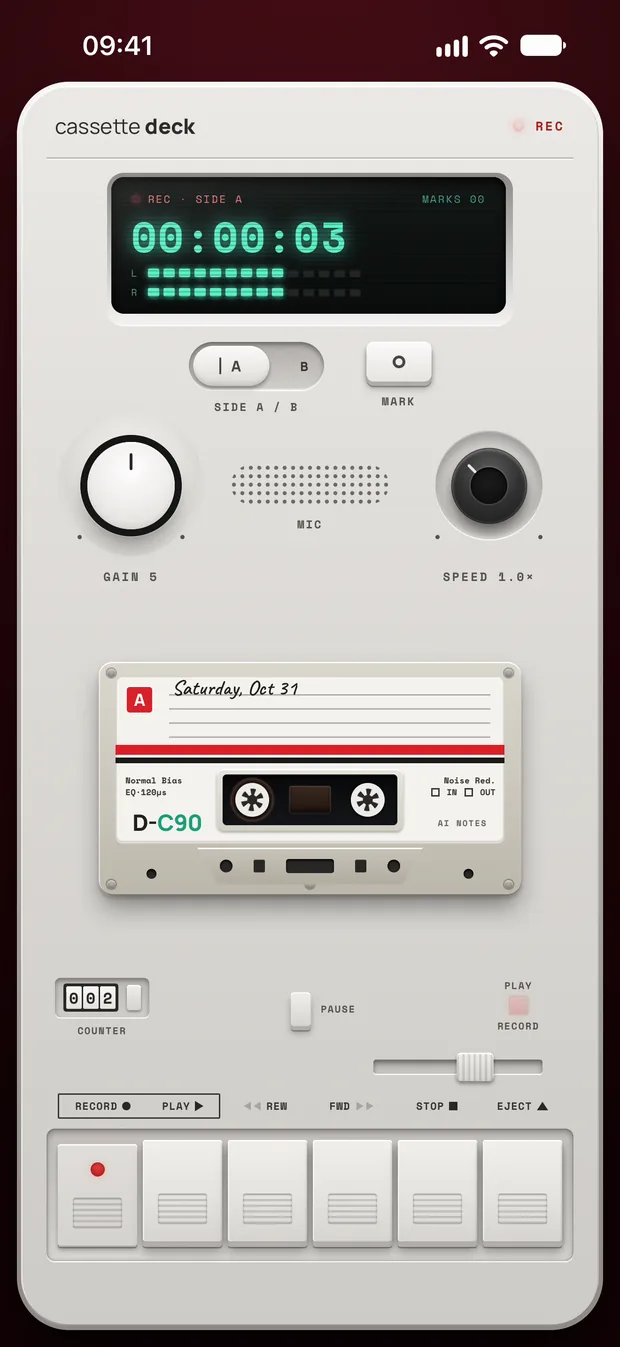
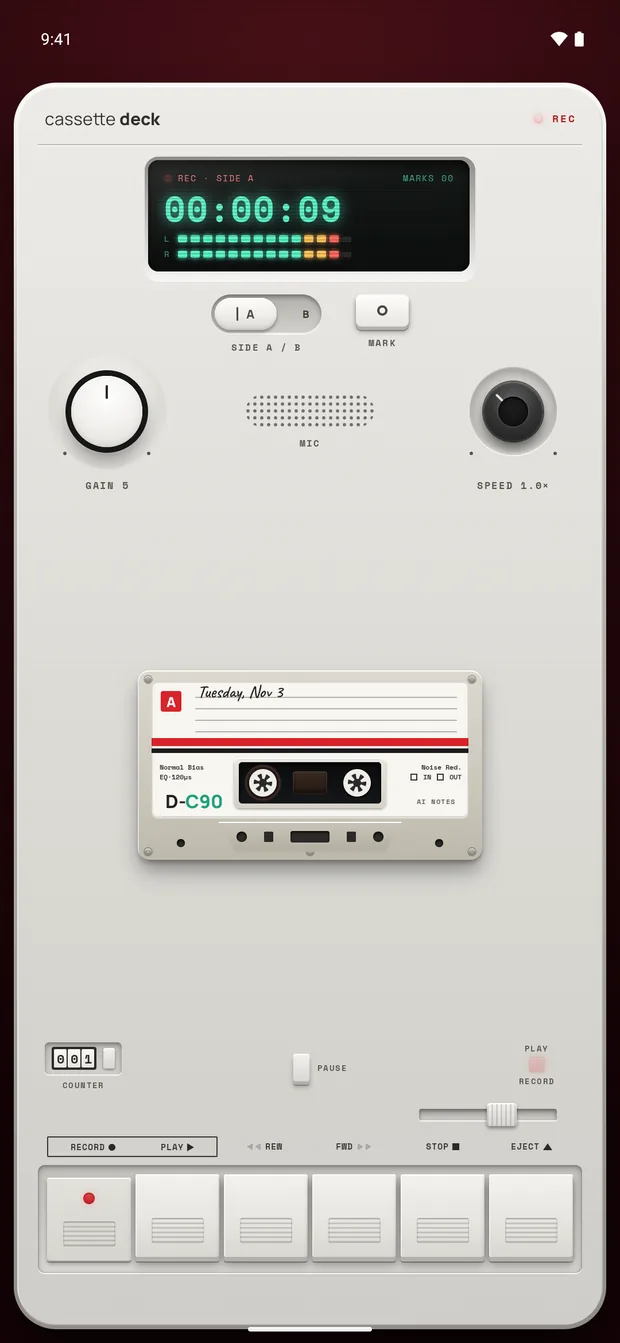
Cassette is a voice recorder made to look like a tape deck, on iPhone and Android. The steps are the same on both.
- Press RECORD. The tape keeps rolling when your screen locks.
- Tap MARK when something matters. Each mark holds that moment on the tape.
- Press STOP. Cassette writes the transcript and the notes on its own, with no outside AI service.
Cassette picks the kind of notes from what it hears. A memo to yourself in English usually gets the gist, a list of to-dos with the day if you said one, and any ideas. A class gets an outline and key terms, and a meeting gets its decisions and actions.
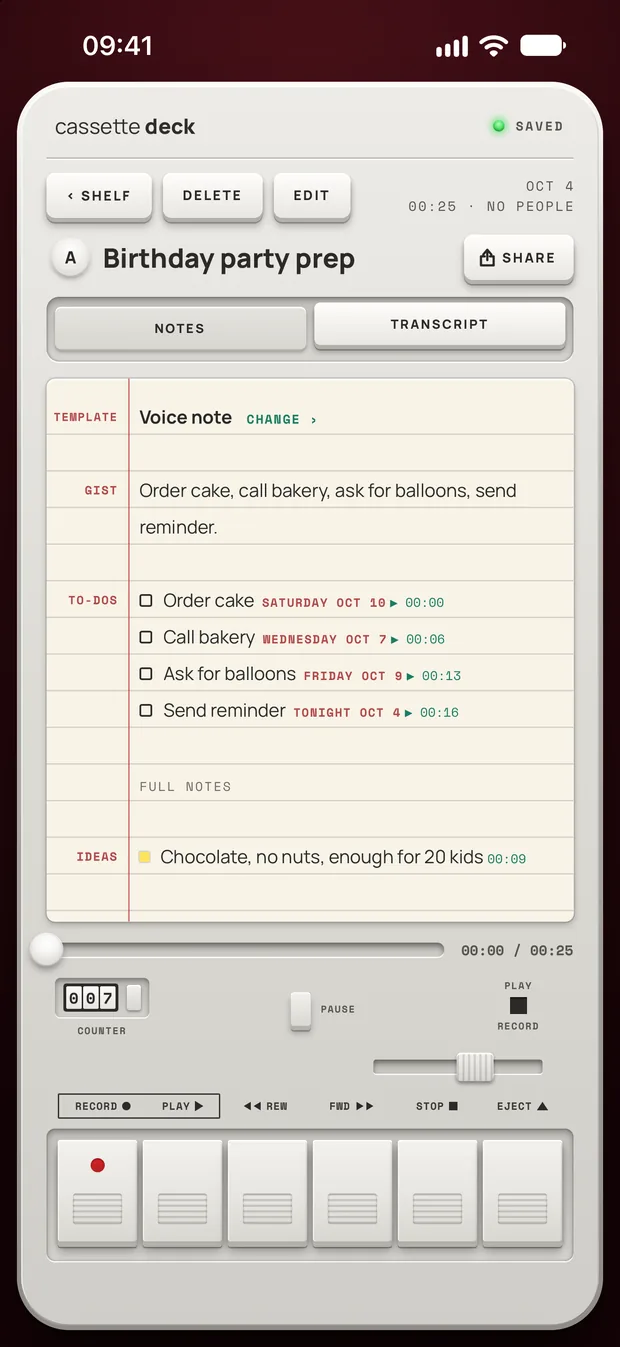
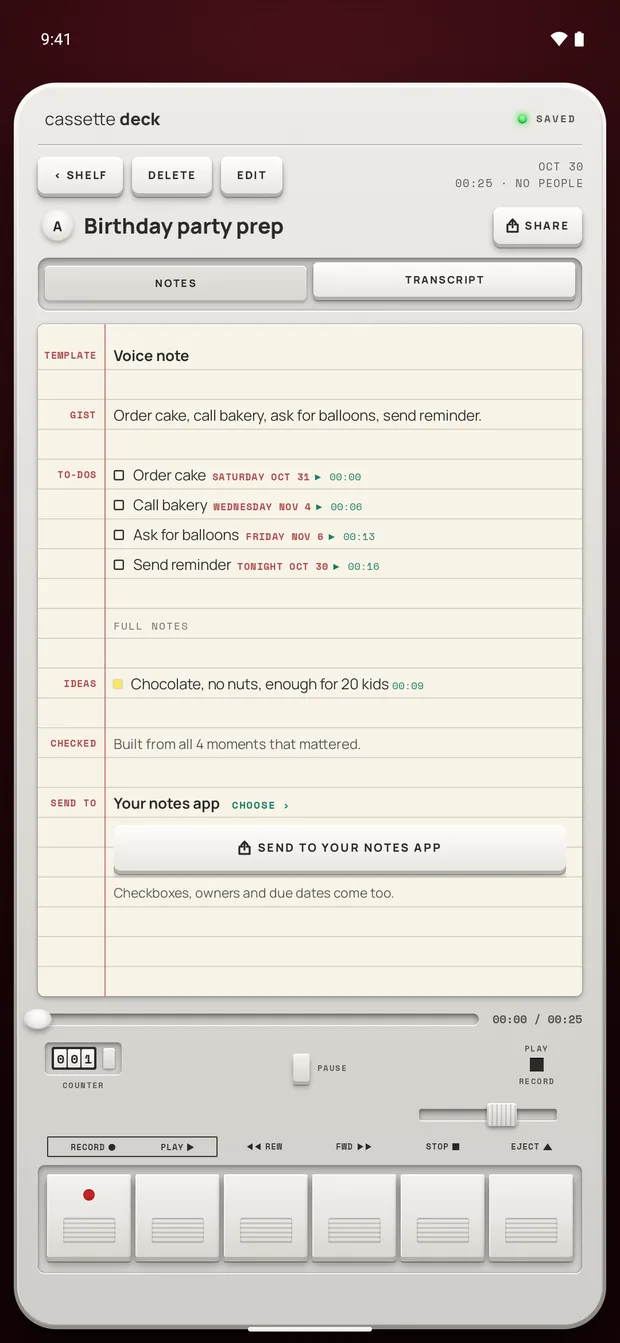
Those notes need a phone that can run the notes model. On an iPhone without Apple Intelligence or on a version before iOS 26, or an Android phone with less than 8 GB of memory, you get the recording, the transcript and a few lines heard clearly, with no summary, to-dos, outline, terms, review cards or template choice.
How Cassette does on the list
- Locked screen: the tape keeps recording when the screen locks, on both systems.
- Starting fast: add the Cassette widget to your Home Screen. On iPhone with iOS 18 or later, Control Center can start a tape too, and so can the Action button on iPhones that have one. On Android, there is a Record tile for Quick Settings. With an Apple Watch you can also record from your wrist.
- Finding a moment: marks hold the moments you tapped. Turn the SPEED knob to play a tape from 0.5x to 2x. On the TRANSCRIPT tab, tap a line to go to that moment on the tape.
- Getting the audio out: open a tape, tap SHARE and choose Share Audio to send the recording itself as an M4A file. The same menu copies the notes or the transcript, or saves them as PDF or Word.
- Where the audio goes: notes are never written by an outside AI service. On Android, the audio is never sent anywhere to be transcribed or written up. On iPhone, Apple's servers transcribe a tape the phone can't do on the device, the notes can be written on Apple's Private Cloud Compute on iOS 27, and tapes go in iCloud and computer backups. Signed-in Premium backs tapes up on both systems. On iPhone, On-device only stops all of that.
- Without a signal: recording, the transcript and the notes work in airplane mode. On iPhone the transcript needs a language your phone can handle on the device, with its speech model downloaded. On Android the notes model arrives over Wi-Fi once after you install, so open Cassette on Wi-Fi first.
- Cost: recording is free, with no minute meter. A tape under 3 minutes gets its transcript and notes free. Longer tapes count toward the 2 free tapes a month, and Premium covers the ones after that.
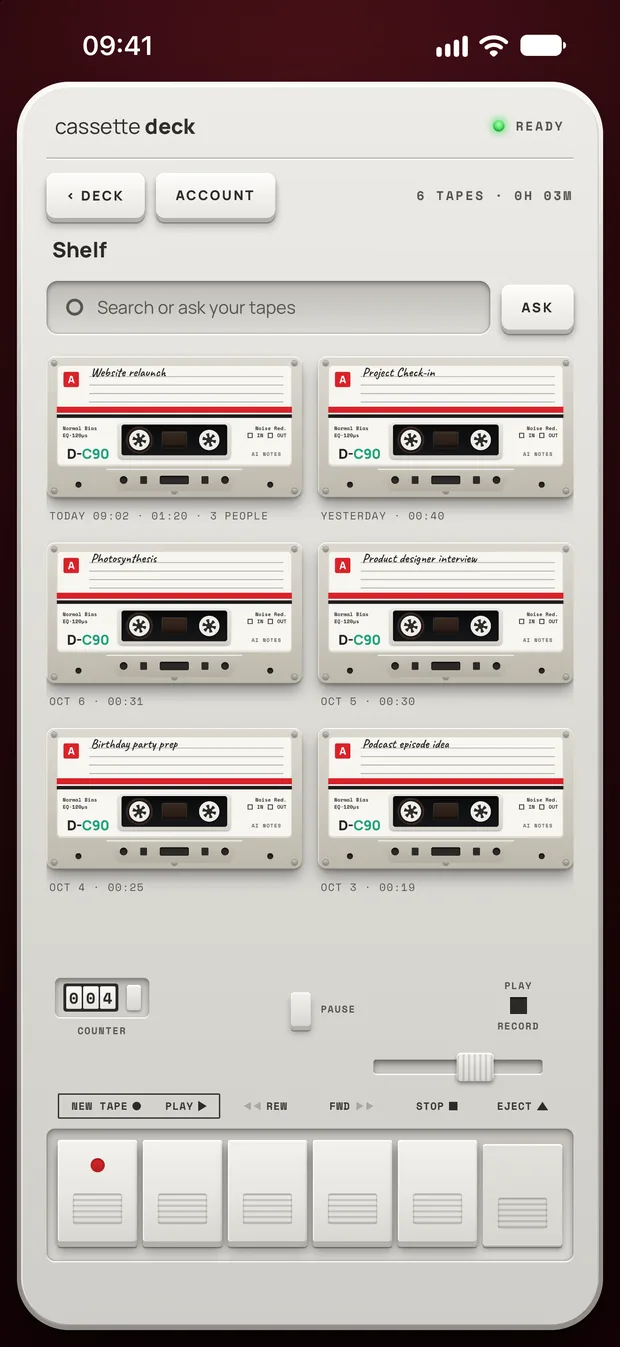
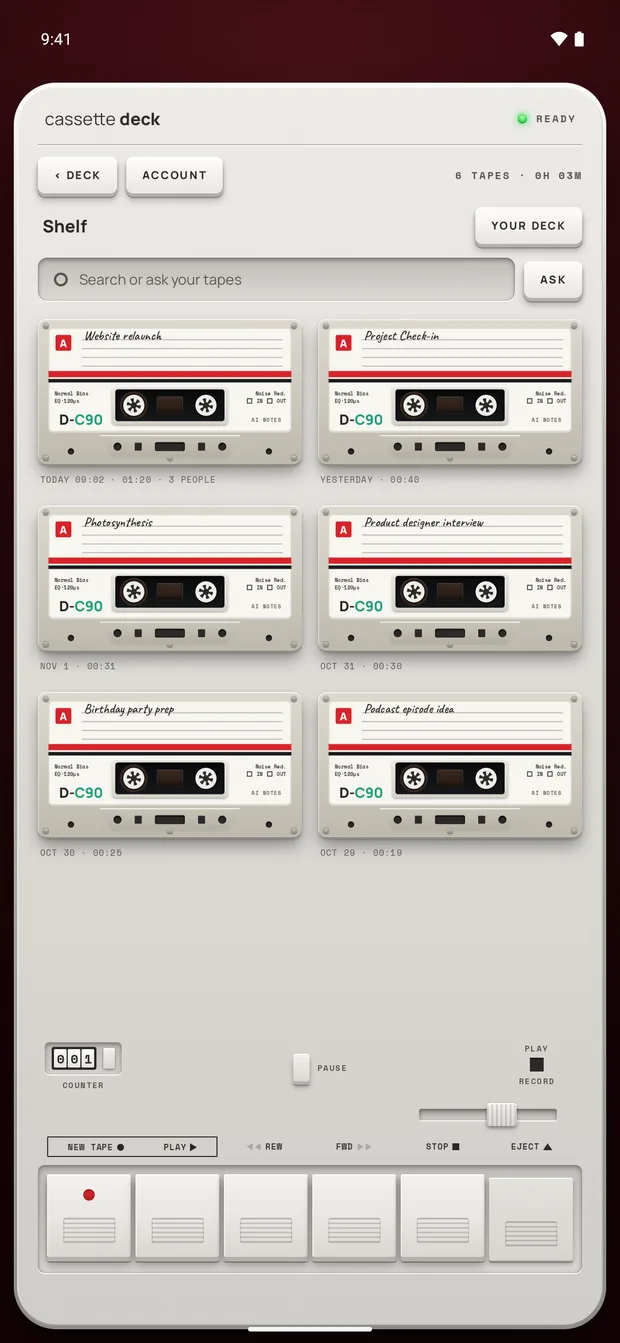
Every tape waits on the Shelf with its date and length, and you can search your tapes or ask them a question, like "what did I say I'd do this week?"
Already have recordings in another app?
On iPhone, iPad and Mac, Cassette can take a recording you already have. On iPhone or iPad, share it from Voice Memos, Files or another app and choose Cassette, or press ADD FILE on the Shelf. On a Mac, drag the file onto the Shelf. A long recording dragged straight from Voice Memos has to go to the Desktop first.
Cassette reads M4A, MP3, WAV, AAC, FLAC, Opus and the sound in MP4. Your original file isn't changed, and the free tier counts it the same way as a tape you record. Cassette for Android can't add a file yet, so there it writes up only tapes it records itself. Our voice memo guide has the full steps.
Before you record
Ask first. Whoever you are recording should know about it, some places require everyone's consent, and it is the decent thing to do.
Try Cassette
Free to download. Recording is free and unlimited, tapes under 3 minutes get their transcript and notes free, and longer ones get them free for 2 tapes a month.
Questions
Is there a good free voice recorder app?
For most people, the one that came with the phone: Voice Memos on iPhone, Recorder on a Pixel, Voice Recorder on a Galaxy. They record for free and, on the phones and languages their makers list, write transcripts. If you want notes and to-dos from what you said, try Cassette. Recording is free, and a tape under 3 minutes gets its transcript and notes free.
Can a voice recorder app keep recording with the screen off?
Cassette can, on iPhone and on Android. For any other app, start a recording, lock the phone for a minute and check before you rely on it.
Can I send the recording itself to someone?
In Cassette, open the tape, tap SHARE and choose Share Audio. It sends an M4A file through the share sheet, like any other file.
Can I slow down a recording to catch what was said?
In Voice Memos, use the speed slider under More, then Options. In Cassette, turn the SPEED knob, from 0.5x to 2x.
Related guides
- How to transcribe voice memos on iPhone or AndroidTurn a voice memo into text with the tools already on your phone. Steps for iPhone, Mac, Pixel and Samsung, and what Cassette adds.
- How to record a lecture on iPhone or AndroidRecord a lecture on your phone, mark what matters and get notes you can study from. Steps for iPhone and Android, with the built-in apps and with Cassette.
- How to use your Apple Watch as a voice recorderRecord your voice on Apple Watch with Voice Memos and find the recording on iPhone, or record in Cassette to get a transcript and notes.
Sources
- Apple Support: Play a recording in Voice Memos on iPhone: https://support.apple.com/guide/iphone/play-it-back-iphebbd067ce/ios
- Apple Support: View a Voice Memos transcription on iPhone: https://support.apple.com/guide/iphone/view-a-transcription-iph00953a982/ios
- Pixel Phone Help: Create, edit and manage transcriptions: https://support.google.com/pixelphone/answer/16267698?hl=en
- Pixel Phone Help: Save and share recordings and transcripts: https://support.google.com/pixelphone/answer/16267696?hl=en
- Samsung Support: Use Voice Recorder with Galaxy AI: https://www.samsung.com/us/support/answer/ANS10000942/