 cassette deck
How to take notes in a meeting using AI
Written by the team that builds Cassette, so we are not neutral about it. Updated 12 November 2026.
The short answer
Tell everyone first, then let a tool listen while you talk. On a call, the AI built into Zoom, Microsoft Teams or Google Meet can write notes if your plan includes it and it is turned on. In a room, or on any call app, record with your phone: in Cassette on iPhone or Android you press RECORD, press STOP when the meeting ends, and the summary, decisions and actions are written for you. Either way, say owners and dates out loud during the meeting, and check the notes before you send them.
Before the meeting starts
- Say that you will record. Do it at the start, not halfway through. People speak more freely when nothing is a surprise.
- Pick where the AI listens. If everyone is on one video call and your plan has AI notes, the call app can do it. If people are in a room, or the call is on an app your plan doesn't cover, use your phone or computer.
- For a room, put the phone in the middle of the table. Keep it away from laptops, coffee cups and the air vent. Silence it so a buzz doesn't land in the transcript.
On a video call: the AI your call app has
Each of the big call apps has its own AI notes, and each depends on your plan and on settings an admin controls. This is what their makers say today.
- Google Meet. Click Take notes for me at the top right, then start it. The notes go to a Google Doc in the organizer's Drive. It needs an eligible Google Workspace edition or Google AI plan, and works in a short list of languages, one per meeting.
- Zoom. Meeting summary with AI writes a summary on Zoom Workplace paid plans, once it is turned on for your account. Settings decide who receives it.
- Microsoft Teams. Intelligent recap gives AI meeting notes and suggested tasks in the Recap tab after the meeting. It needs a Teams Premium or Microsoft Copilot license, and transcription turned on.
If you have one of these, use it. The gaps are meetings in a room, people on a free plan, and calls on a different app each week.
In a room or on any call: record with Cassette
Cassette is a tape deck style recorder for iPhone and Android. It listens through the phone's microphone, so nothing joins a call and it doesn't matter which call app people use.
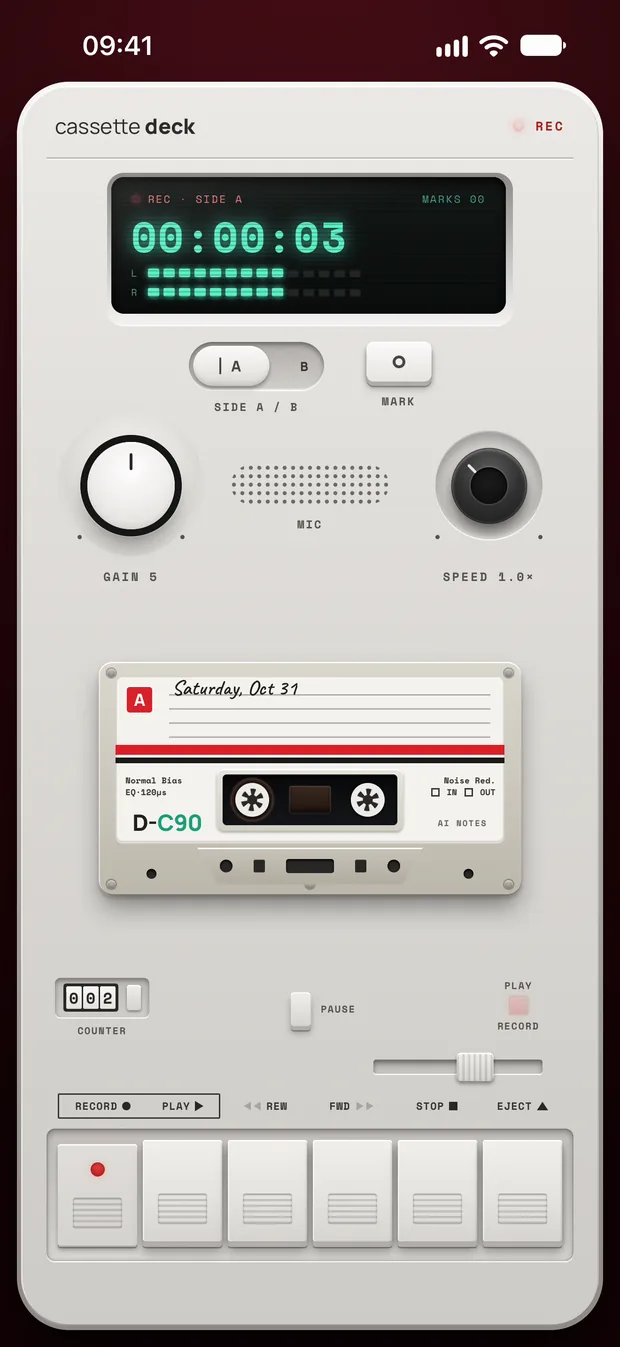
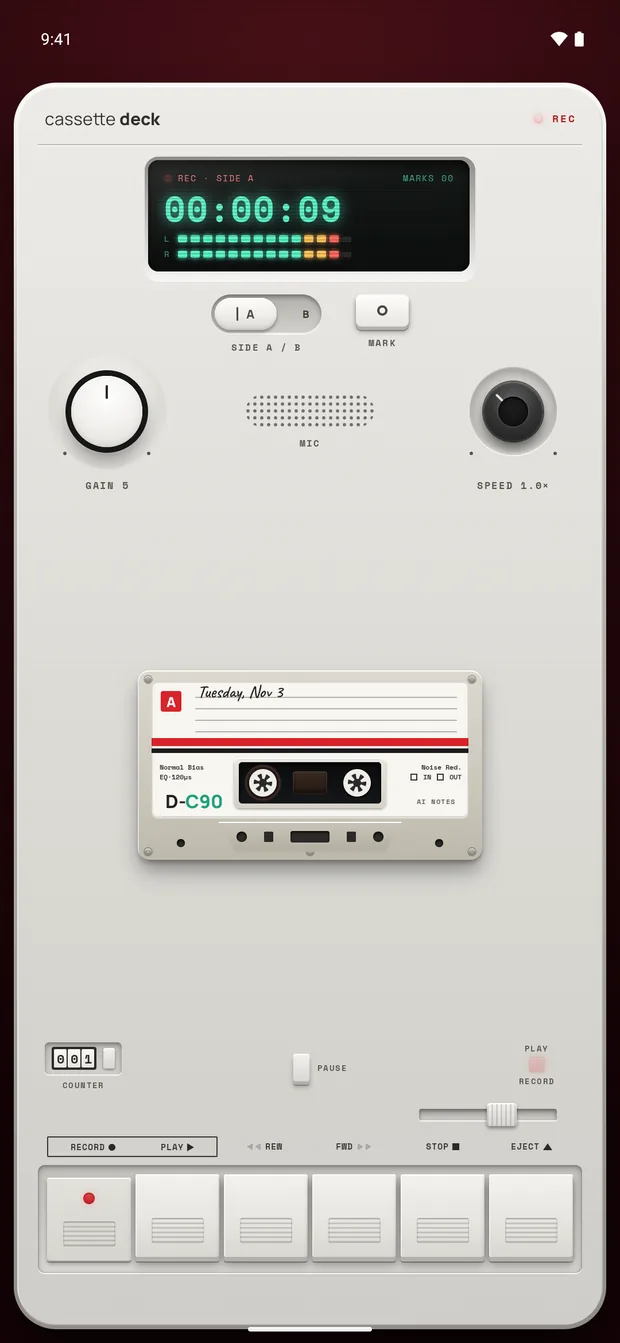
- Open Cassette and press RECORD as the meeting begins. You can lock the phone and the tape keeps going.
- Tap MARK when a decision is made or someone takes on a job. The mark keeps that moment easy to find.
- Press STOP at the end. Cassette writes the transcript, then the meeting notes, and no outside AI service writes them.
During the meeting: say it so the AI can catch it
AI notes can only hold what was said out loud. A nod across the table never reaches the transcript. A few habits make the notes much better, whatever tool you use.
- Name the owner and the day. "Priya will send the draft by Friday" becomes a task with a person and a date. "Someone should look at that" becomes nothing.
- Say decisions as decisions. "So we're going with the second plan" is easy to pick out. A quiet agreement is not.
- One person at a time. Two people talking over each other is hard for anyone to transcribe, people included.
- Recap in the last two minutes. Read back what was decided and who does what. The AI hears it again, and anyone who drifted off hears it once.
After the meeting: check, then share
For a meeting in English, Cassette works out that it is a meeting and writes a summary, what was decided, the actions, key points and any questions left open. Each action shows the person and the date when someone says them.
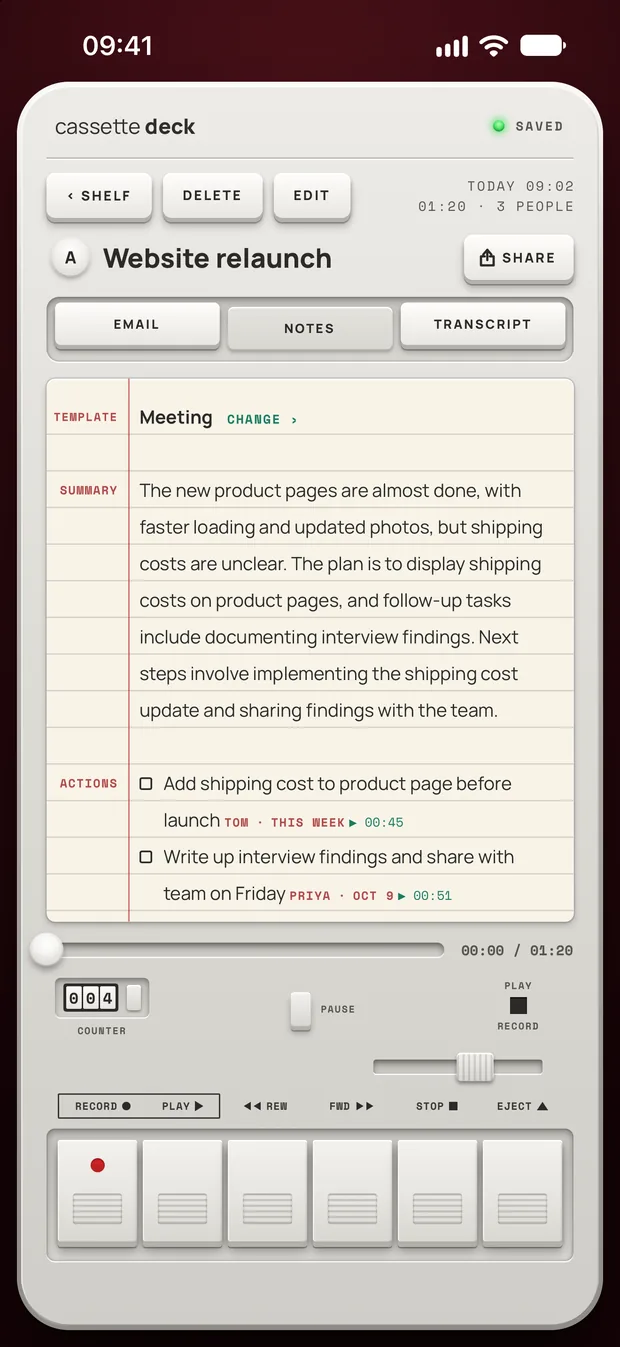
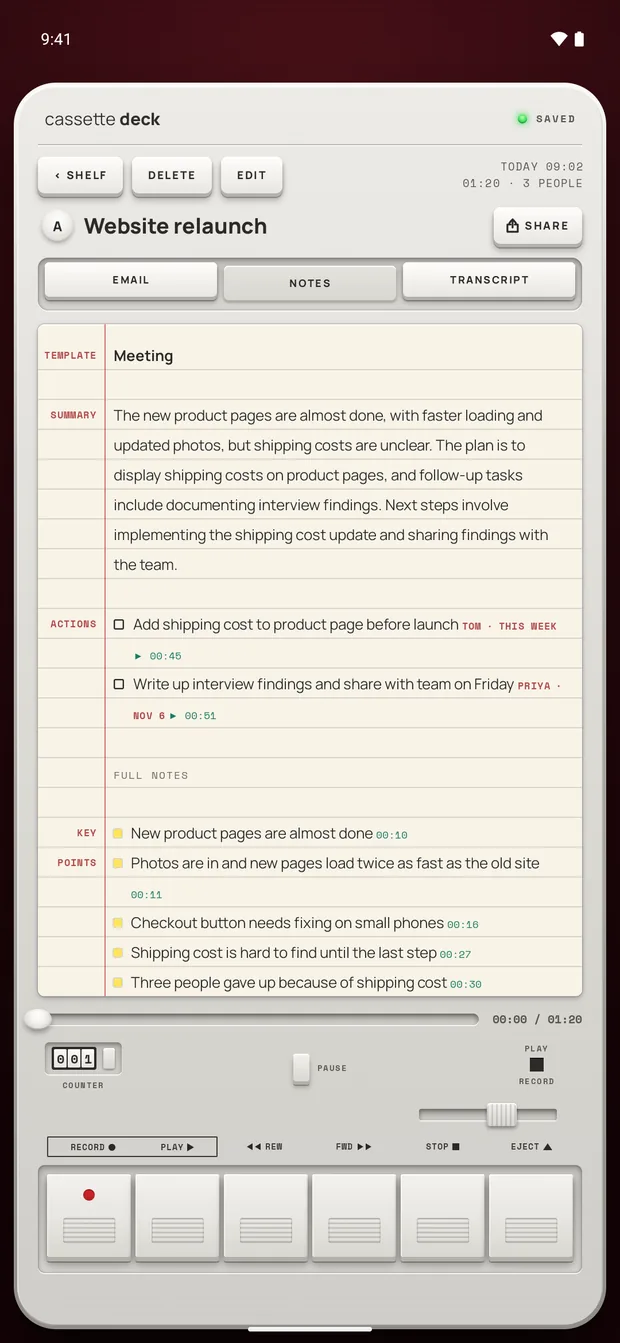
- Read the actions first. They matter most and they are where a wrong name would hurt.
- Check anything that looks off against the tape. Tap the line in the transcript to jump there, press PLAY and listen.
- Wrong kind of notes? If it took a client call for a plain meeting, open the template on the notes page and pick another. The notes are written again.
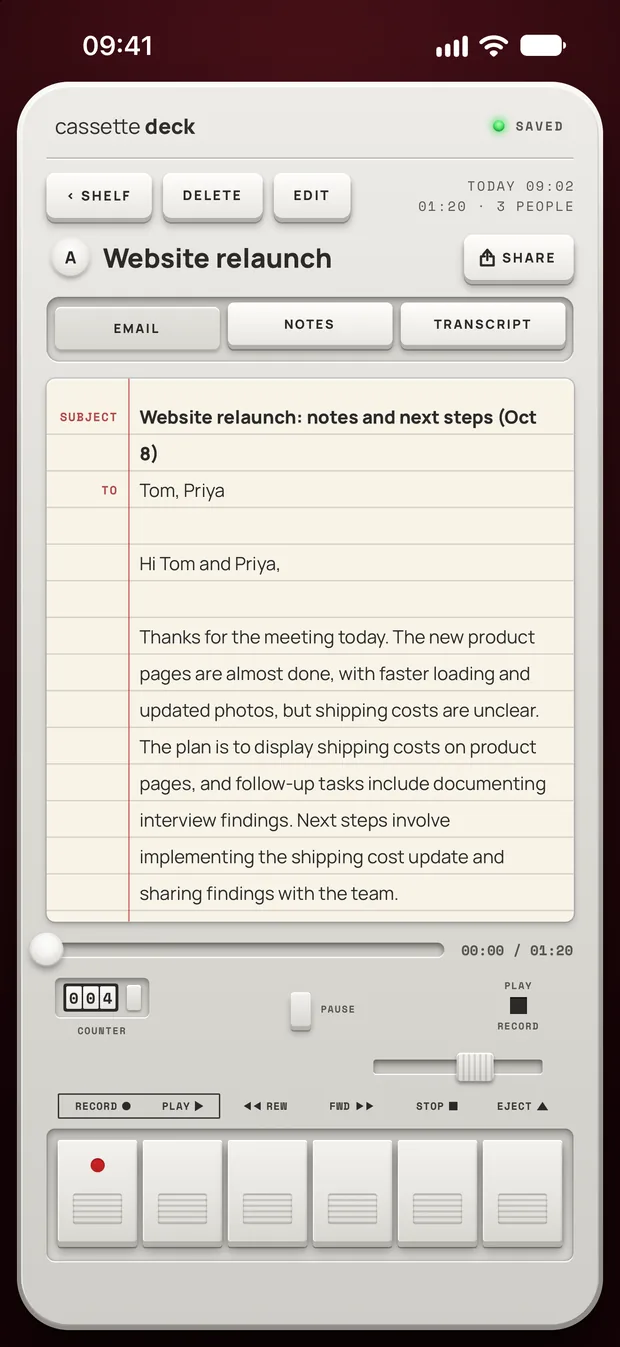
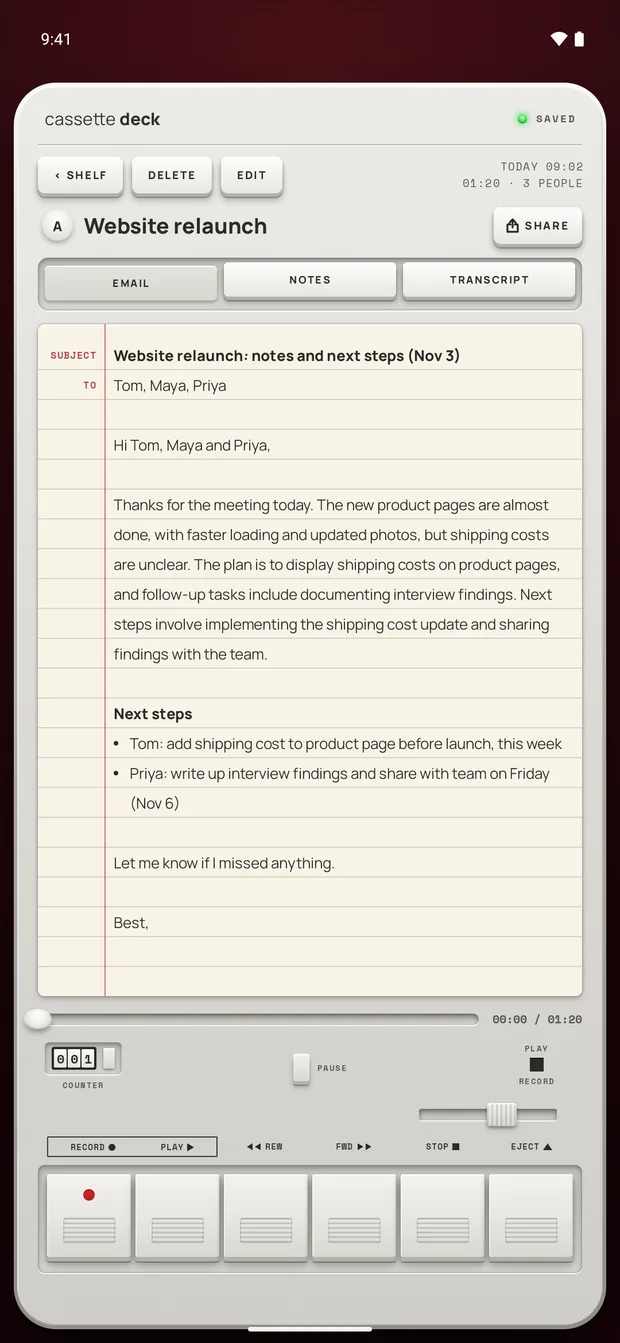
- Send the follow-up. Open EMAIL on the tape. The subject, the names of the people and a summary are already in a draft for you to change and send.
You can also send the notes to Notion, OneNote, Evernote or Google Keep, to Apple Notes on iPhone, iPad and Mac, or to Samsung Notes on a Samsung phone. On a phone that gets full notes, you can later ask your tapes a question like "what did we decide about the launch?" and Cassette answers from your own recordings, with the sources.
Full notes depend on the phone. An iPhone without Apple Intelligence or on a version before iOS 26, or an Android phone with less than 8 GB of memory, gets the recording, the transcript and a few lines heard clearly, with no summary, to-dos, outline, terms, review cards or template choice. On Android, the full notes are written for English, and other languages get simpler notes.
Calls on a Mac, and recordings you already have
On a Mac, move the switch on the deck to CALL. Cassette records what the Mac plays, so the other people on Zoom, Google Meet or Microsoft Teams, along with your own microphone. No bot joins. macOS asks once to allow screen and system audio recording, and it needs macOS 15.2 or later.
If someone else recorded the meeting, bring the file in on iPhone, iPad or Mac: share it to Cassette on iPhone or iPad, press ADD FILE on the Shelf, or drag it onto the Shelf on a Mac. It gets a transcript and notes like any tape, and the original file isn't changed. Cassette reads M4A, MP3, WAV, AAC, FLAC, Opus and the sound in MP4. Cassette for Android can't bring in files yet.
Before you record
Ask first. Whoever you are recording should know about it, some places require everyone's consent, and it is the decent thing to do.
Try Cassette
Free to download. Recording is free and unlimited, tapes under 3 minutes get their transcript and notes free, and longer ones get them free for 2 tapes a month.
Questions
Can I use AI to take meeting notes for free?
Often, yes. Cassette records with no time limit, writes up any tape under 3 minutes free, and writes up 2 longer tapes a month free, with Premium for every tape after that. The AI notes in Zoom, Teams and Google Meet usually come with paid plans.
Do I have to tell people the meeting is being recorded?
Tell them anyway. Cassette doesn't join the call or send an invite, so nobody is told unless you tell them.
Does it work without the internet?
On Android, yes, after the notes model has come over Wi-Fi once after you install. On iPhone, the transcript is written on the phone in the languages it supports there, once that language's speech model is downloaded. Otherwise Apple's servers write it.
Where does the recording go?
No outside AI service writes Cassette's notes. On Android the phone transcribes and writes the notes itself. On iPhone, Apple's servers transcribe a tape the phone can't do on the device, the notes can be written on Apple's Private Cloud Compute on iOS 27, and tapes go in iCloud and computer backups. Signing in with Premium backs tapes up on both systems. On iPhone, On-device only in your Cassette profile turns all of that off.
Related guides
- How to choose a meeting notes appHow to pick a meeting notes app: what your phone and your call app already do, eight things that matter for meetings, and how Cassette does.
- How to use an AI note taker without a bot in the callHow an AI note taker works, when a bot in the call makes sense and when it doesn't, and how to get notes from meetings, classes and interviews on your phone.
- How to transcribe a meeting without a bot in the callGet a transcript of any meeting, in a room or on a call, on iPhone, Android or Mac: what Zoom, Teams and Meet do, and how Cassette does it with no bot.
- How to transcribe voice memos on iPhone or AndroidTurn a voice memo into text with the tools already on your phone. Steps for iPhone, Mac, Pixel and Samsung, and what Cassette adds.
- How to record a lecture on iPhone or AndroidRecord a lecture on your phone, mark what matters and get notes you can study from. Steps for iPhone and Android, with the built-in apps and with Cassette.
Sources
- Google Meet Help: Take notes for me in Google Meet: https://support.google.com/meet/answer/14754931?hl=en
- Zoom Support: Meeting summary with AI: https://support.zoom.com/hc/en/article?id=zm_kb&sysparm_article=KB0057960
- Microsoft Learn: Intelligent recap for Teams calls, meetings, and events: https://learn.microsoft.com/microsoftteams/intelligent-recap-calls-meetings